Connect with an opponent
Send a request with the + SPD button. You can play them right away; once they accept, your games together appear on both iPads.
You need two things:
- Both of you signed in to your own Straight Pool Deluxe account, each on your own iPad, with Straight Pool Cloud. (Everyone who bought the app before version 6.0 already has it. Otherwise it comes with Cloud Unlock.) Without it, the + SPD button doesn’t appear.
- Their username, or the email address they registered with. It has to match exactly. To find your own username, look in Settings → Account, and read it to each other.
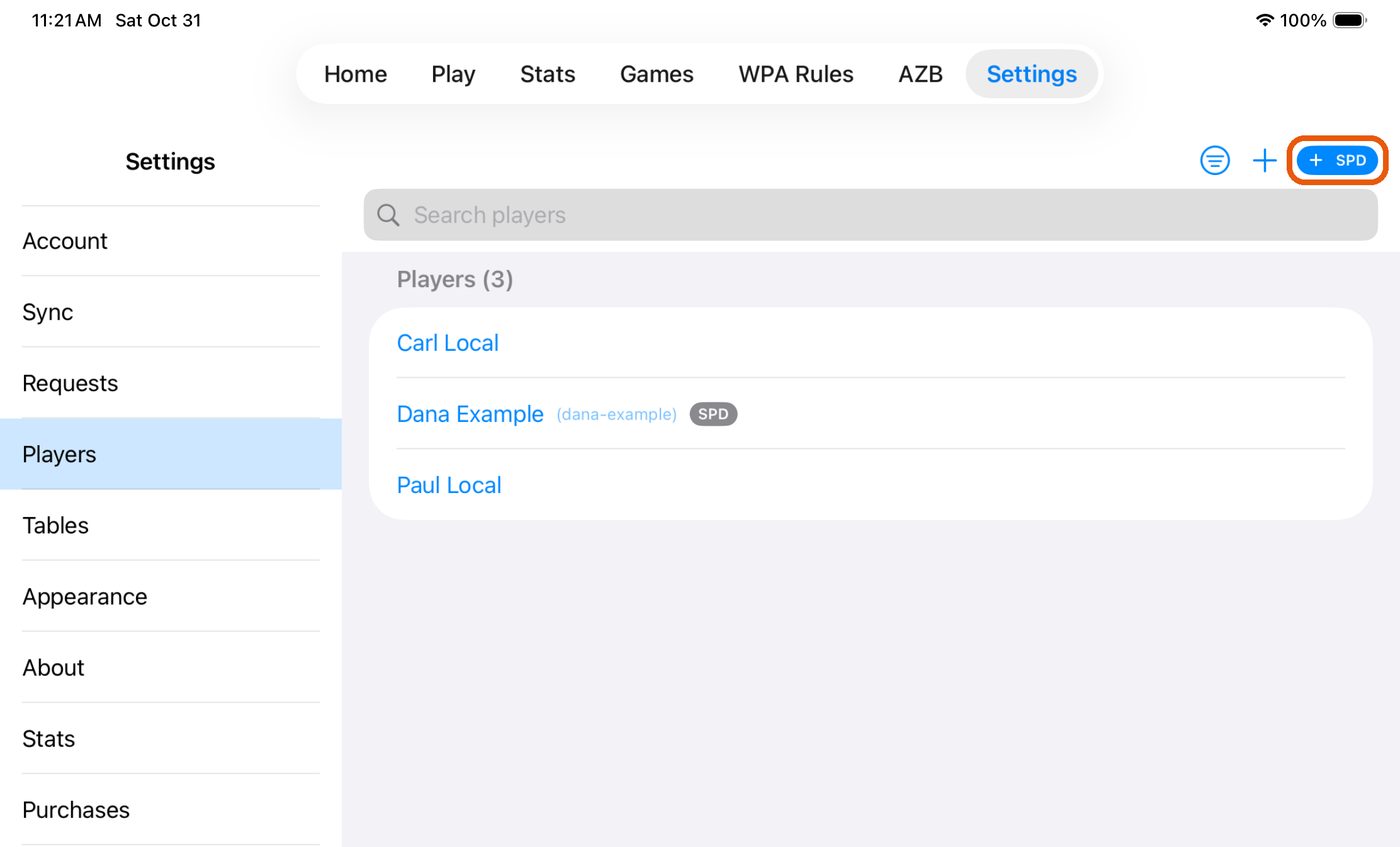
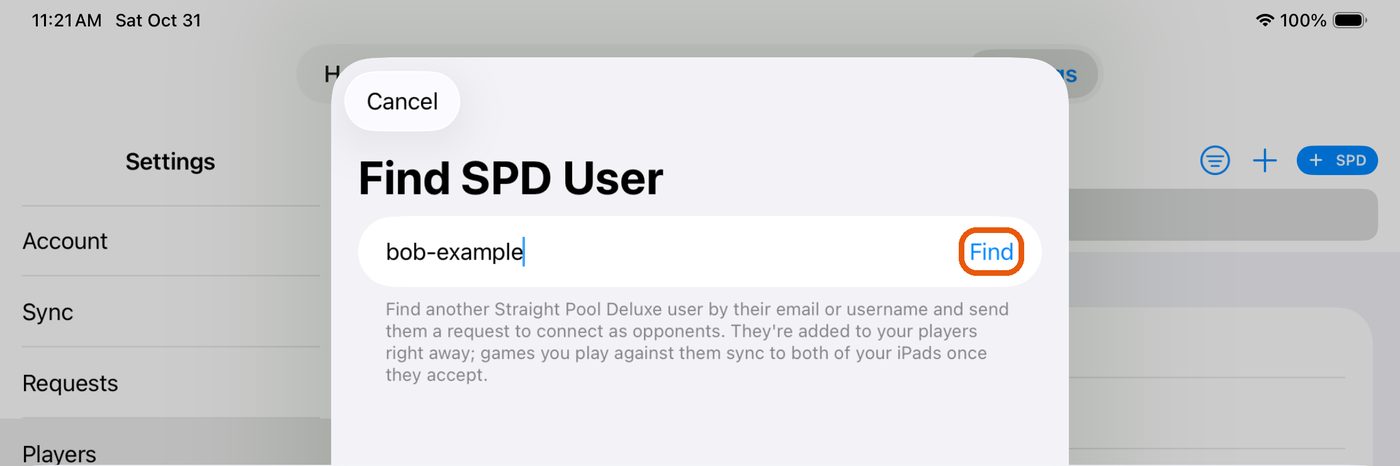
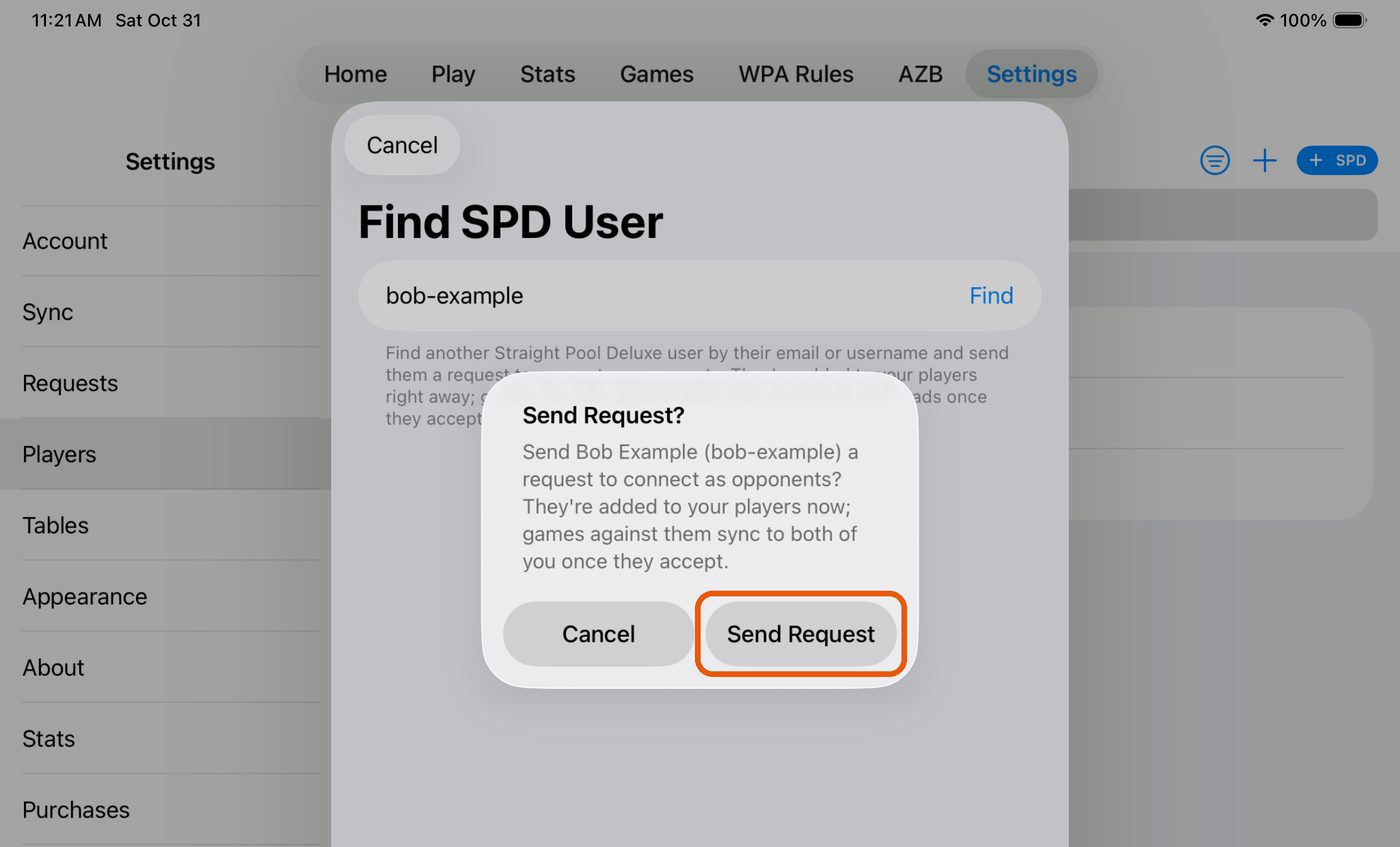
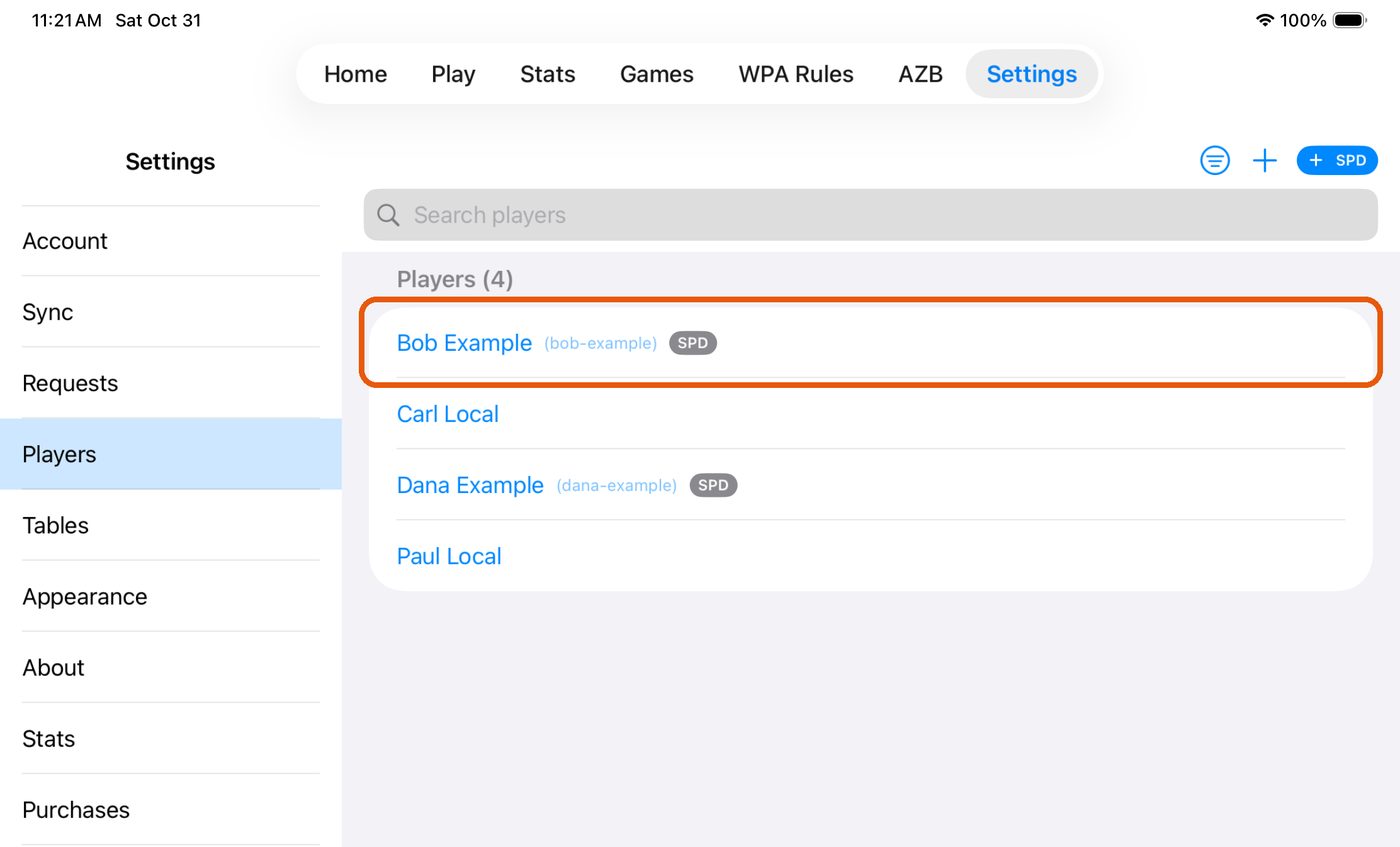
In the pictures, Alice is adding Bob.
On your iPad
-
Go to Settings → Players and tap the blue + SPD button. (The plain + next to it adds a local player. Don't use that one for Straight Pool Deluxe users.)
-
Type their username or email and tap Find.
-
Tap Send Request. Then tap OK on the "Request Sent" message.
-
That's it on your side. They're in your Players list right away with a gray SPD badge, and you can start a game against them now. Games you score are saved and wait for them until they accept.
Starting a game? You can do the same thing from the new-game screen: when choosing a player, tap + SPD, find them, and tap Add. The request goes out when the game is saved.
On their iPad
The request shows up the next time their app syncs: when they open it after being away for a while, after they finish a game, or when they pull down on the Players list.
-
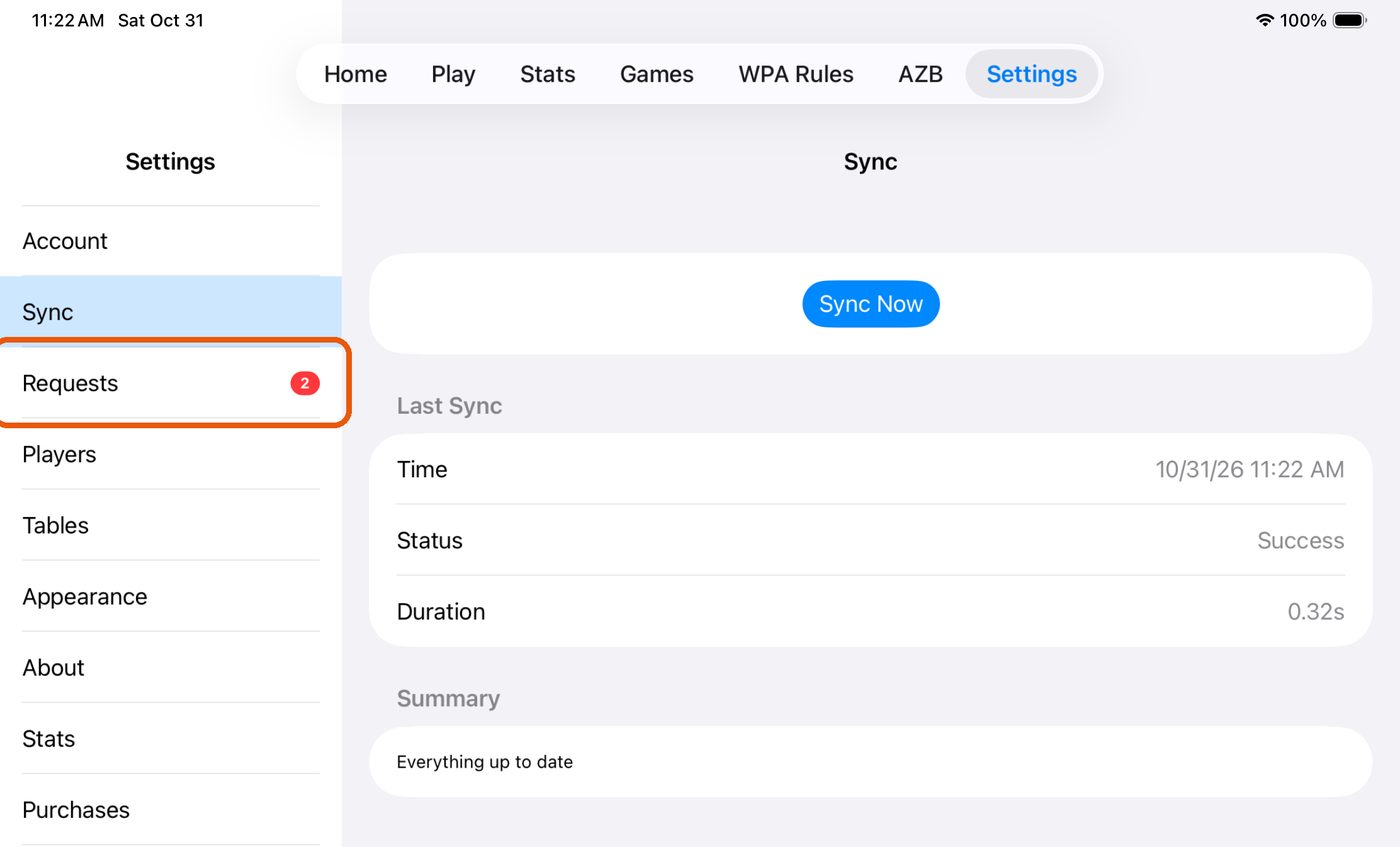
Settings → Requests shows a red number when something is waiting.
-
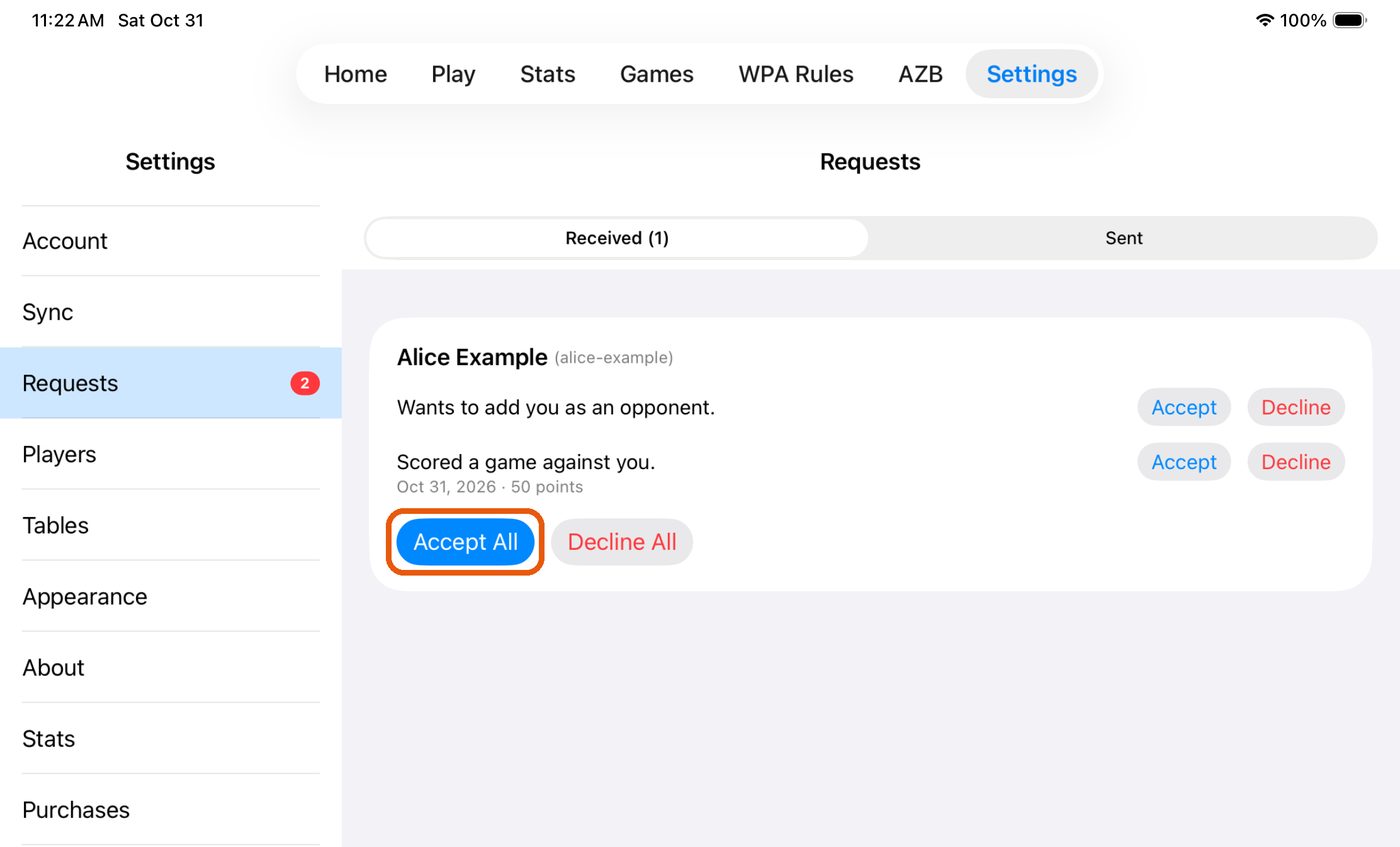
Tap Accept All. The card under Received shows who's asking ("Wants to add you as an opponent.") and a line for each game they've already scored against you.
-
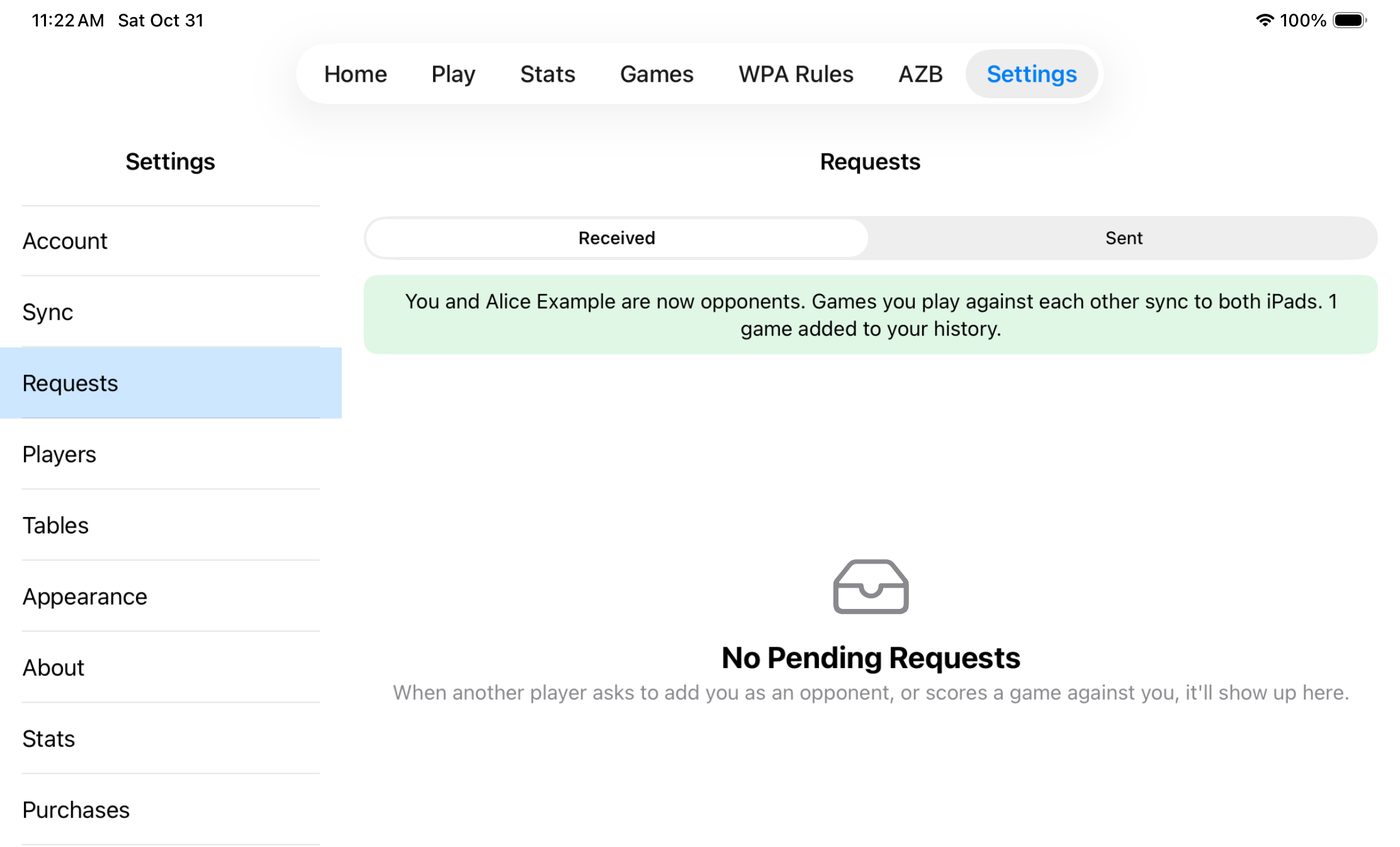
Done. You're now opponents. Every game between you, past and future, shows up on both iPads, and the other player gets a blue SPD badge in your Players list.
Other choices on the request
- Accept or Decline one line at a time. Accepting a single game adds just that game to your history. It doesn’t connect you.
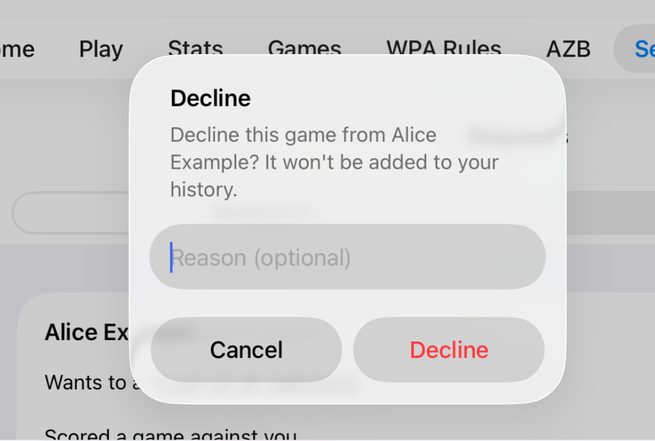
- Decline asks for an optional reason, which the sender will see. They can’t ask again for a week.
Checking on a request you sent
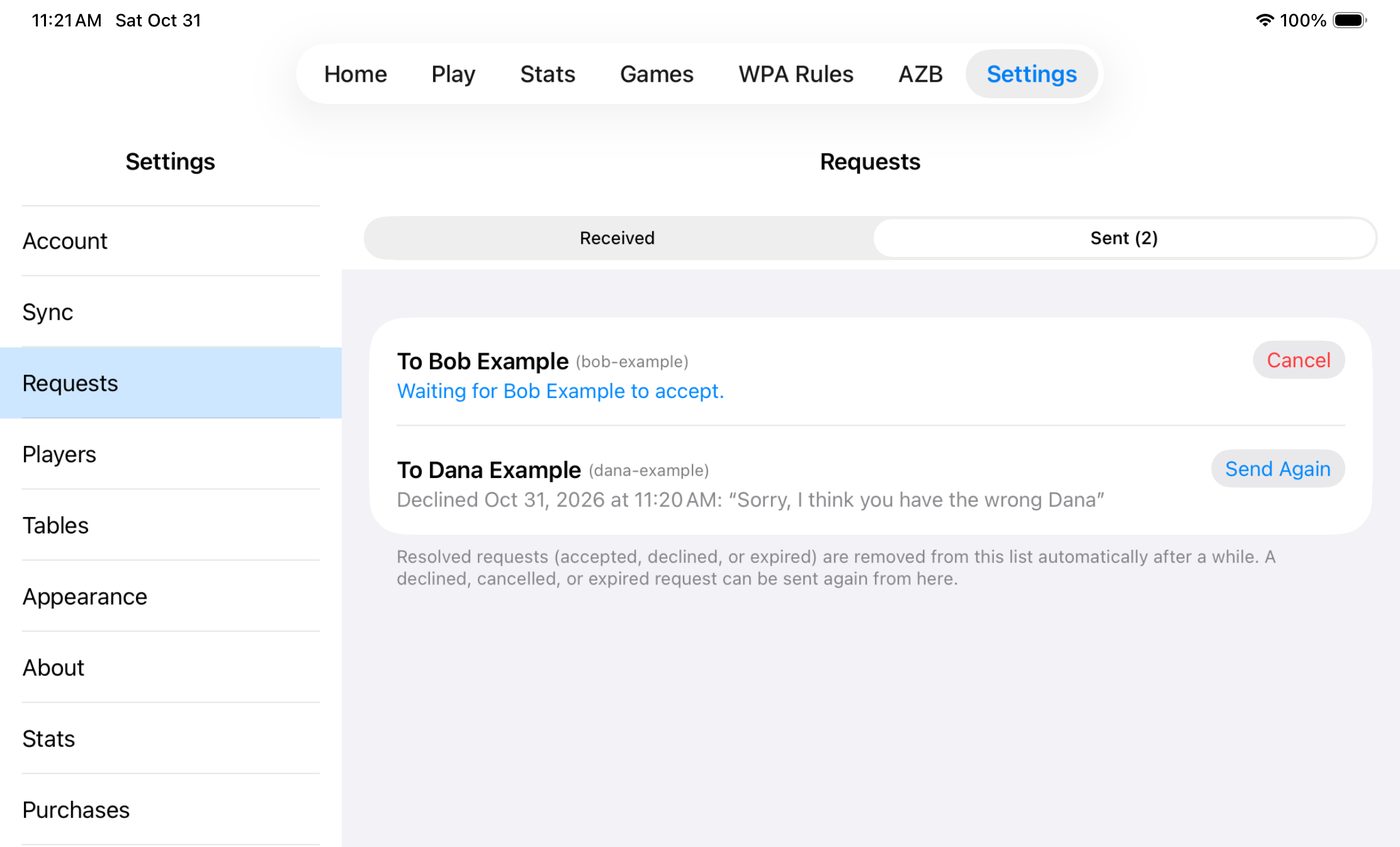
Settings → Requests → Sent lists your requests: still waiting (with Cancel), accepted, declined (with their reason, if they gave one), or expired. A request that’s declined, cancelled or expired can be sent again with Send Again. Requests expire after 60 days.
If something goes wrong
- “No User Found”: check the spelling of the username, or try their email address. It must match exactly.
- “Already Here”: they’re already in your Players list. Look for their name with an SPD badge.
- “Try Again Later”: they declined a recent request. You can ask again after the date shown.
- Accepted, but your iPad still shows a gray badge? Pull down on the Players list to sync, or tap Sync Now in Settings → Sync.
- They don’t see a Requests screen? They need app version 6.1 or later. Your request waits until they update.