Notes on your games
There are two kinds of notes: in-game notes, which you write during play and which become part of the game record, and a private note that only you can see.An opponent who also uses Straight Pool Deluxe sees your in-game notes, never your private note.
- In-game notes are for anything worth remembering during play: a ruling, a break, a tight pocket, new cloth. You can write as many as you like. Each one is saved with the game and shows up as its own row in the innings display, right where you wrote it. An in-game note never changes the score, whose turn it is or the ball count.
- The private note is one note per game that only you can see. You add it after the game. See below.
In-game notes are part of the game record. Like the score, an in-game note goes with the game to every Straight Pool Deluxe user who played in it, and to your own other iPads. Your opponent sees it in the same place in their innings display. When this applies, the note box says so, for example “Fred Example can see it too.” Don’t write anything you wouldn’t want in the permanent record of the game. For something only you should see, use the private note instead.
Writing in-game notes needs the Local or Cloud unlock. On the free version, Add Note has a lock beside it, and tapping it opens the upgrade screen. Anyone can read them, though: if you’re on the free version and receive a game with in-game notes, you’ll see them. The private note is free in every version.
Add an in-game note
-
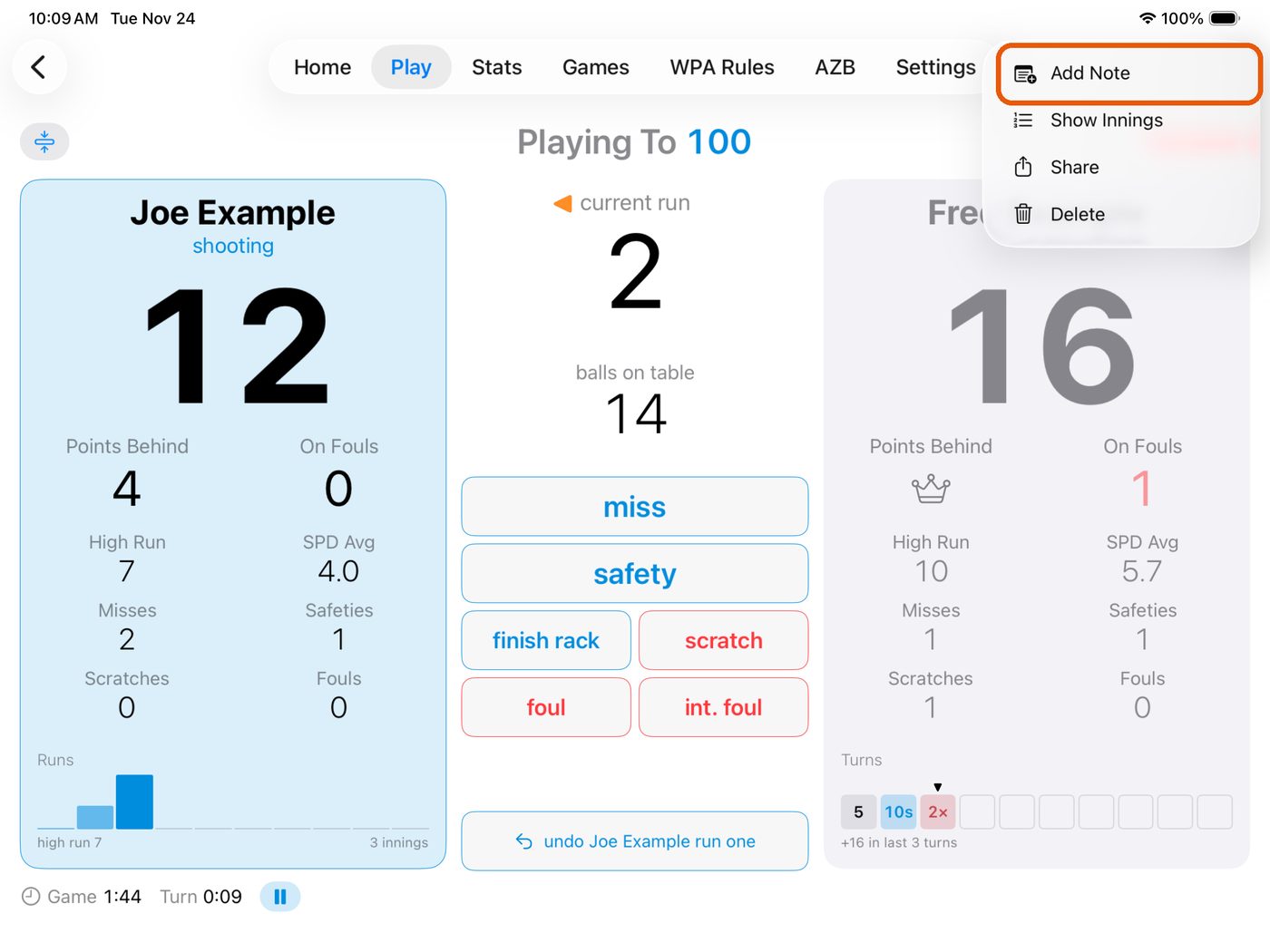
On the game screen, tap ••• at the top right, then tap Add Note. Depending on your iPad's software version, Add Note may instead appear on the top bar as a note icon with a plus.
-
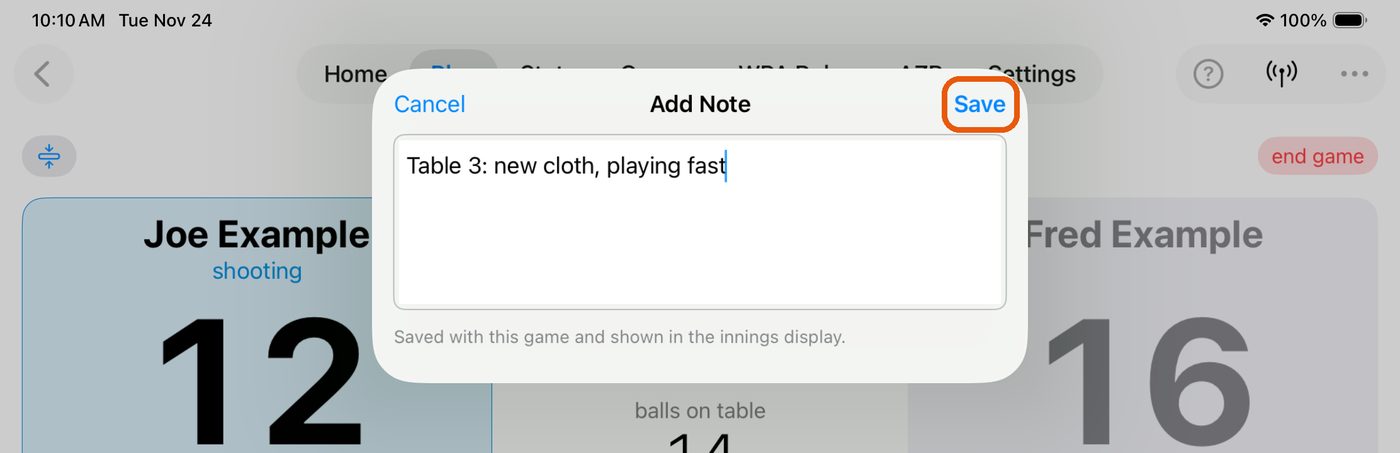
Type your note and tap Save. A note can be a few words or several lines, up to 500 characters. To throw it away instead, tap Cancel, or swipe the box down. The game clock keeps running while you type.
Using minimal view? It hides the top bar, so there’s no Add Note there. Leave minimal view to add a note.
Where in-game notes show up
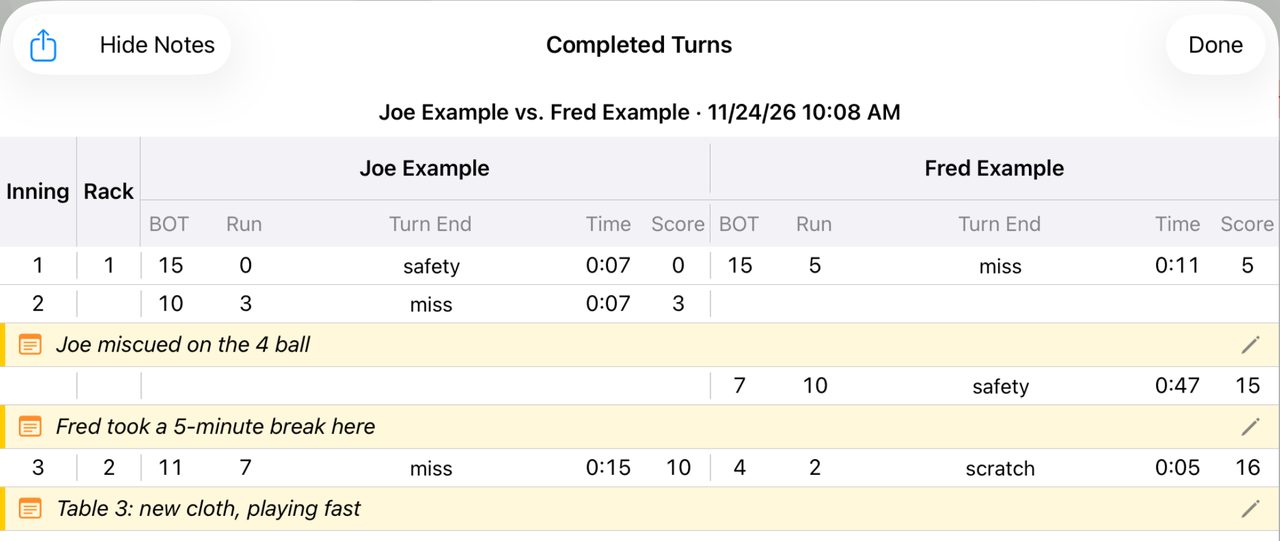
Tap Show Innings in the same ••• menu. Each note is a yellow row, placed where you wrote it:
- Between turns: the note sits between those two turns. Below, “Joe miscued on the 4 ball” was written after Joe missed in inning 2, so it splits that inning in two.
- During a run: the note goes right after that player’s turn. A run stays on one row, so a note never splits it. “Fred took a 5-minute break here” was written partway through Fred’s run of 10.
- During the turn still being played: the note shows at the bottom until that turn ends.
Once the game is over, you can still read its in-game notes: go to the Games tab and tap the game. Show Innings shows them in place, and Notes lists them with the inning each was written in.
Change or delete an in-game note
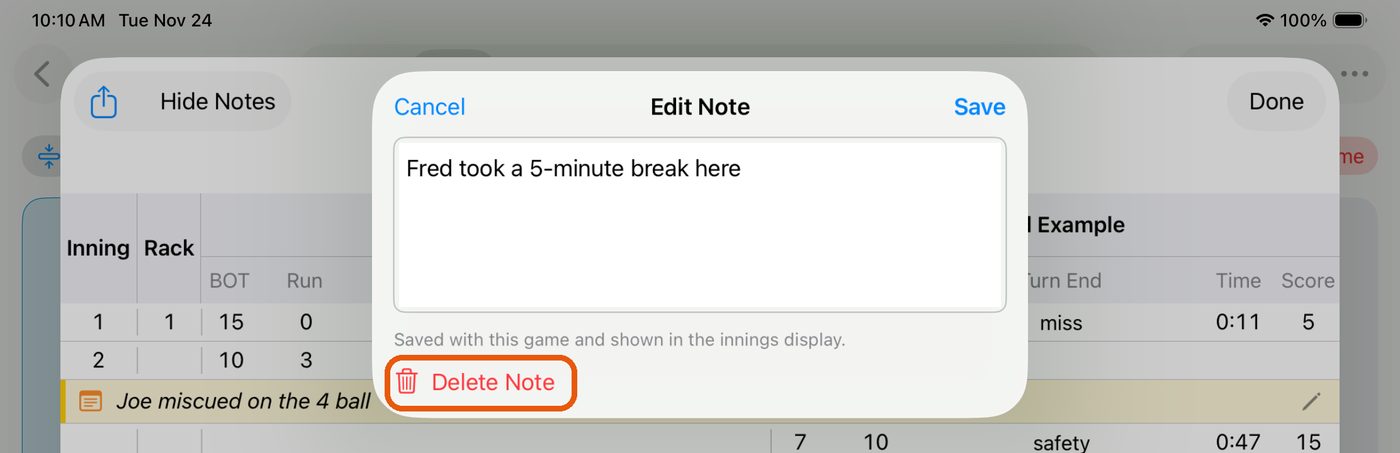
While the game is still going, open Show Innings and tap the note. Edit Note opens: change the text and tap Save, or tap Delete Note. The app asks before it deletes anything.
- Undo doesn’t remove in-game notes. It takes back the last ball or turn, the same as always, and your notes stay put.
- After the game ends, you can read its in-game notes but not change or delete them.
Hide in-game notes for a clean score sheet
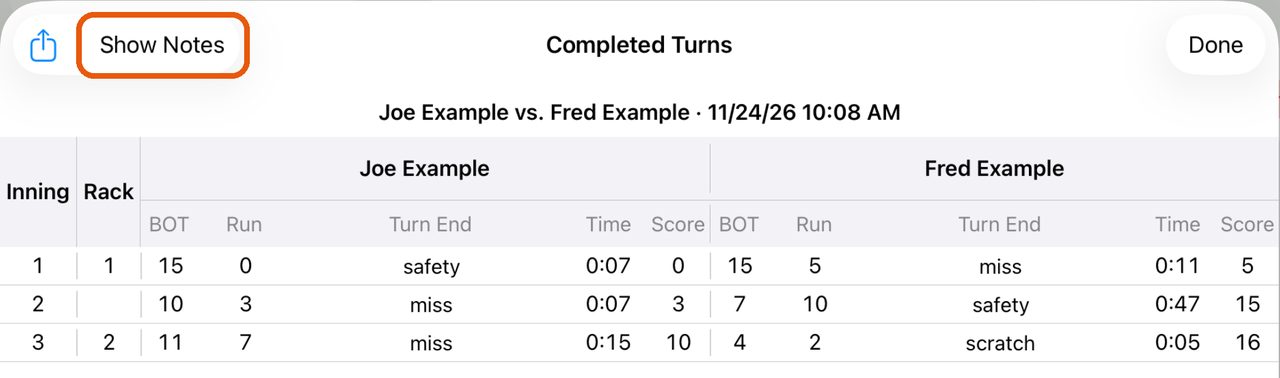
Tap Hide Notes at the top of the innings display to see the game without its in-game notes. The button then says Show Notes. The share button shares what’s on screen, so hide the notes first if you want to send just the scores. Hiding doesn’t delete anything, and the notes are back the next time you open the innings display.
Your private note
Each game can also have one private note, just for you. It’s never sent to your opponent, and it’s free in every version of the app.
Go to the Games tab, tap the game, then tap Notes. Tap the Private Note box, type, and tap Done to save. You can add to it or change it any time. Below it, Notes From the Game lists the game’s in-game notes, for reading only.
The app used to offer this note in a box at the end of every game. It no longer asks; add, update or erase it whenever you like.
Good to know
- If your opponent hasn’t updated the app yet, they get the game without the in-game notes.
- In-game notes don’t appear on Gamecast.
- In the Games list, a note icon marks any game with a private note or in-game notes.